
New York DFS ID – Action Needed by March 31, 2026
The New York Department of Financial Services has officially released their new login portal, DFS ID*. With the implementation of this new system, there will be significant changes to how licensees apply for and maintain their licenses in the state of NY. These changes will impact how Resource Pro Compliance maintains licenses on behalf of our clients moving forward. You must complete the steps below by March 31, 2026.
We have created this step-by-step process, using the DFS ID Multi-Factor Authentication User Guide, and the DFS ID Entity Administrator User Guide,to get you properly setup in DFS ID*. This includes instructions to set up your account and to add your ReSource Pro team members, including Surplus Lines (if applicable), to your account so that we may continue to maintain your compliance services in New York.
DFS ID is an invitation-only system for those responsible for conducting DFS business on behalf of a regulated entity. These invitations are only managed by DFS or by an Entity Administrator, meaning that the account cannot be created unless an invitation is received via email.
Already have a NY DFS ID set up?
CREATING AN ACCOUNT
When invited, you will receive an email that includes instructions on how to set up your DFS ID account. It is important that you do not lose this email, as it will contain a one-time link to create an account. If this email is lost, or is not received, you must reach out to NY DFS directly by completing their DFS ID Help Form to obtain a new invitation.
- DFS ID Help Form Link – DFS ID – Help Form
- Select “Creating an Account” from the options list and enter the contact information requested. DFS should then reach out to assist with account creation.

Follow the instructions to create your account and once created, you will need to use multi-factor authentication (MFA) to sign in. This will be done using an authenticator app on a mobile device. Follow the instructions below to set up the MFA for your DFS ID account.
1. Download an authenticator app to your mobile device (for example, Google Authenticator or Microsoft Authenticator).

2. On the DFS ID Login Page, enter your DFS ID credentials and select Sign In.

You will see a QR Code:

3. When you see the QR code on the screen, open your authenticator app on your phone and choose Scan QR Code (Already have an authenticator app? Click on the plus sign (+) to add DFS ID).

4. Use your phone to scan the QR code on your computer screen.

A 6-digit code will appear in the app.

5. Enter the 6-digit code on the DFS ID page, create a device nickname you will recognize, and click Continue.

You have successfully set up MFA. Select Go to Homepage to reach the DFS ID homepage.
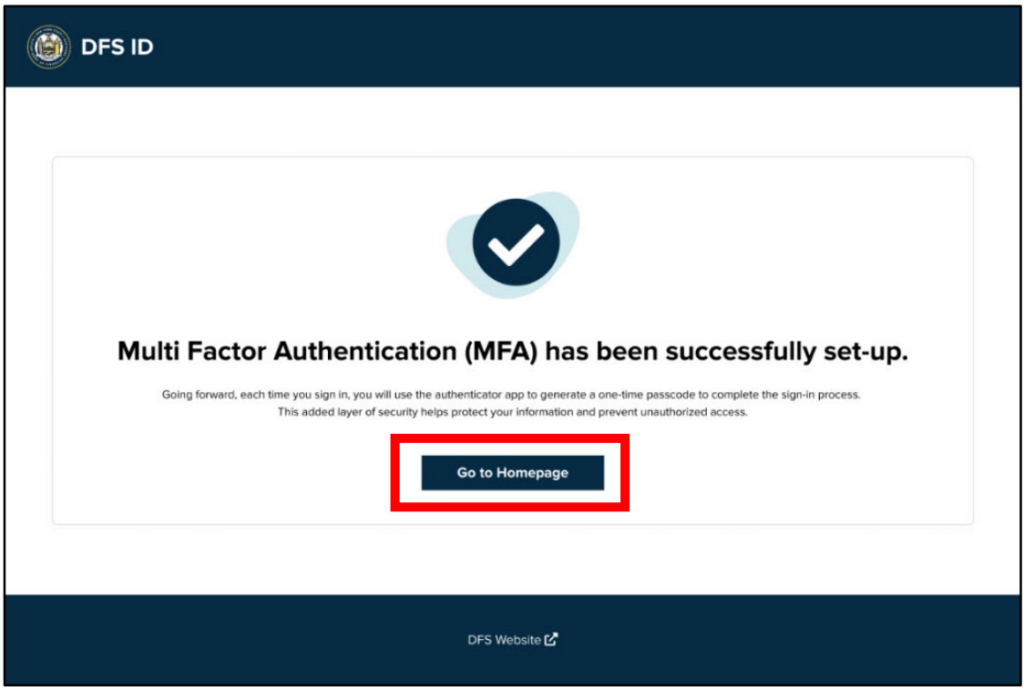
Once MFA is set up, you will re-use the Authenticator and your mobile device to sign in each time you attempt to log into your account. This Multi-Factor Authentication User Guide will give more information about set up and continued use.
YOU ARE NOT DONE
Now Add Users and Access Levels – including your ReSource Pro Licensing Team (MyLicenseTeam@resourcepro.com) and your surplus lines team member (by their email).
BUSINESS ENTITY LOGIN ACCESS
Login invitations for business entities licensed in NY will be sent to an officer or designated producer to serve as Entity Administrator. All DFS-regulated entities will have at least one Entity Administrator assigned in DFS ID, but there is no limit to how many additional Administrators can be added. The Entity Administrator will have the authority to manage roles and users in DFS ID. This Entity Administrator User Guide will provide more information on the role, as well as provide instructions on how to manage the account and additional users. If you logged out, log in again using your Authenticator App to begin.
ADDING A NEW USER
To add a new user or ReSource Pro Compliance team member to the account, you will need to follow the instructions below. *Please note that if you are enrolled in Surplus Lines Tax Filings, your Surplus Lines Tax Filing Representative will need to be added as well, following these same instructions.
- Select My Entities on the DFS ID Home page.

- Select the Entity or Individual.

- In the User Management tab, click Invite User.

- Enter the Email Address and select the Role for the user.

To give access to Resource Pro Compliance, you will need to enter MyLicenseTeam@ResourcePro.com as the email and assign the “Reviewer” role. If you are in Surplus Lines Services, please do the same for your Surplus Lines rep, using their email and granting them Reviewer status.
- Add additional users (if needed) using Add Another User button. Repeat as many times as necessary.

- Select Invite once you have added your user(s).

- You will receive confirmation that you successfully invited user(s) to DFS ID.

The user will receive an invitation link via email and will need to follow the instructions to create their account and gain access.
OTHER HELPFUL RESOURCES
- DFS ID Overview Video: DFS ID Overview
- DFS ID Introduction & FAQ Page: DFS ID | Department of Financial Services